All features 2026-11-13
List cache: the model is read once, and you decide when to read it again
On a 38,000-part model, generating a list PDF went from 82 seconds to just over 1. Here is how SteelX keeps the model reading, why it never re-reads on its own, and what happens when you close without saving.
The problem: every list re-read the whole model
To build a bill of materials, the plugin has to read every part in the model: section, material, length, weight, mark, assembly, drawing. On a small model that takes seconds. On a large one it takes minutes.
Before, that reading was repeated every time a window opened. Lists, then PDF, then Excel: three full readings of the same model, which had not changed at all in between.
The numbers, measured on a real model
Production model with 38,190 parts, Advance Steel 2025. Every time was measured inside Advance Steel, not estimated.
| What you do | Before | Now |
|---|---|---|
| First reading of the model | 113 s | 47 s |
| Open the list PDF window | 82.4 s | 1.3 s |
| Open the export wizard | 70.5 s | 2.6 s |
| Export to Excel | 176.9 s | 22.6 s |
| Open the list manager | the full reading | 0.5 s |
| Close and reopen Advance Steel | the full reading | 1.1 s |
| Switch tabs between two models | the full reading | 0.5 s |
The first reading also dropped, from 113 to 47 seconds, because we stopped computing two expensive fields that the lists did not use. The cache file for this model takes 19 MB and is read from disk in under 1 second. On a mid-size model, the whole reading takes 7 to 9 seconds.
One cache per drawing, kept on disk
SteelX reads the model once and keeps the result. Each drawing has its own cache, so you can work with two models open in tabs and switch between them without waiting.
The cache is also saved to disk, together with the date and size of the .dwg file. Closed Advance Steel and came back the next day? If the .dwg has not changed, the lists open instantly, without reading anything again.
The cache of a drawing nobody has opened in 90 days is deleted automatically, so it does not take up space for nothing. Opening the drawing resets the clock.
You decide when to update
SteelX never re-reads the model without asking. On a large model, a re-read in the middle of your work would cost almost a minute, and sometimes you only touched a part that is not even in the list you are about to generate.
When a part that is in the lists changes, the Refresh list cache button, on the Export panel, turns red with a warning sign:
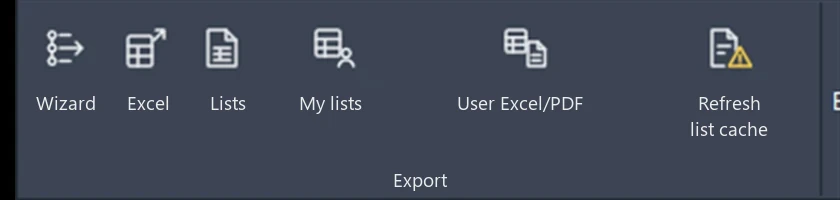
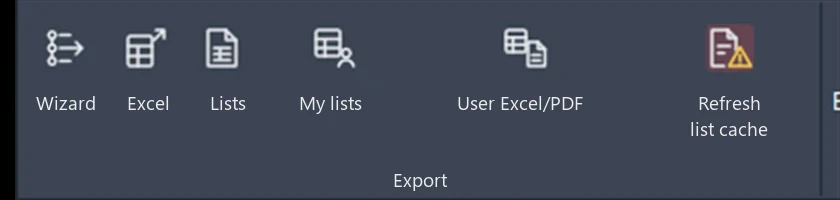
The same button sits at the top of the list windows, and when you open one of them SteelX asks whether you want to revalidate the cache before generating:

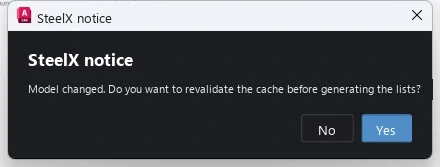
Answer Yes and it re-reads the model, so the list comes out up to date. Answer No and the list uses the previous reading, while the button stays red to remind you. Moving a part that is in no list, rotating the view or editing a weld does not trigger the warning.
What if I do not save the model?
The cache on disk always matches the last saved .dwg. Even if you update the cache after adding a new beam, if the model is not saved with that beam, the cache goes back to the last saved .dwg when you reopen the project, and tells you whether there is a change for you to deal with.
Two examples:
When you save, the cache goes to disk together with the .dwg, flagged as changed, because the list is still from before the beam. The next day the project opens with the button already red, and you decide whether to update.
The .dwg stays as it was, and so does the cache on disk. The next day the project opens with no warning, because the moved beam never reached the file.
This is what prevents a bill of materials that does not match the drawing. If SteelX saved the cache right after re-reading the model with the moved beam, and you closed without saving, the next day you would open a list with a beam in a position that does not exist in the file. That is why, while a changed part is not yet saved, saving the cache waits for the next save.